Showing posts with label Google Analytics. Show all posts

Monday, December 7, 2015

Conversion Tracking with Weebly Site

Here's How to See Conversion Tracking with a Website You Created

First, go to www.weebly.com and build your website. There are help tools that weebly offers, but creating a site is relatively easy. It doesn't have to be perfect when you are using this to test Google Analytics. 

Then, you have to create a Contact Page and a Thank You Page that they will be directed to once they fill out the information. Connect Google Analytics so that it will track the number of people who got to the Thank You page by filling out the Contact Form.


To do this you have to create an account in Google Analytics. You'll enter the website and URL and copy and past the Tracking ID code into the SEO part of the Weebly Site.

Then ask some friends to fill out your contact form, and begin tracking with Google Analytics. You can use your Dashboard to see how many visits and conversions your website has.


Wednesday, December 2, 2015

How to Get the Google Analytics Certification

Steps to Getting Google Analytics Certified

First begin by going to the Google Partners website: https://www.google.com/partners/. You will need to be signed in with your Gmail account.

Then, on the left-hand side, click Analytics under certifications.

How to Get Google Analytics Certified

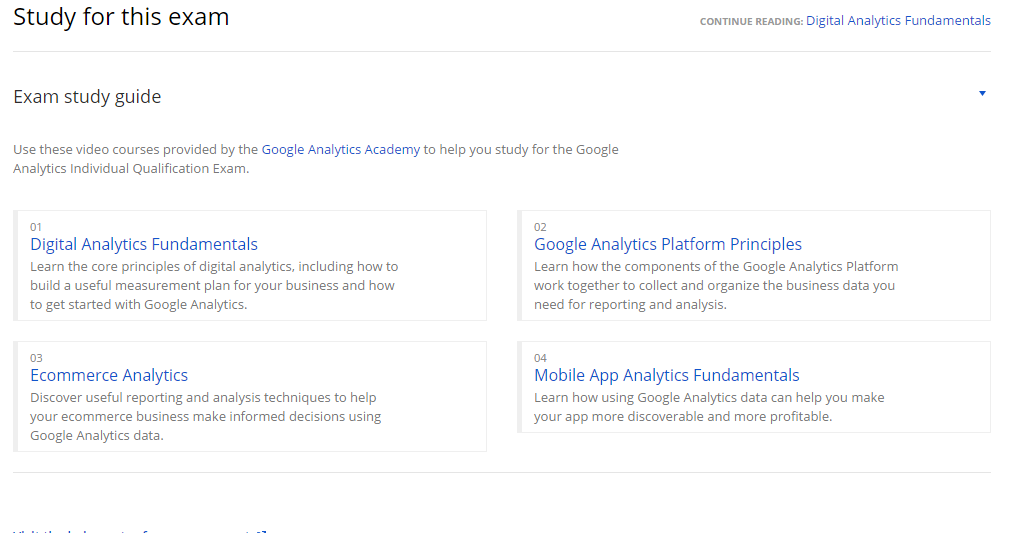
Before you begin the test, you will want to use the materials provided to study. Go through the four different video courses and take advantage of the videos and the review questions throughout each section. The assessments will help as well. Try to focus more on Digital Analytics Fundamentals and Google Analytics Platform Principles. These are important essentials to knowing Google Analytics.

How to Get Google Analytics Certified

Another helpful tip is to follow along with creating a test analytics account to do each step and see how Google Analytics actually works. 

Then when you feel confident, begin the test. 

You have 1 hour and 30 minutes to complete  70 questions. Keep in mind that you cannot save the test and come back. You also cannot go back to any questions. Once you hit next that question is submitted.

To pass, you need to get 80% or higher. If you don't pass right away, it's ok! You can take it as many times as it takes. You do have to wait a week before taking it again, but this gives you time to study more for it.

Getting Google Analytics Certified has many benefits. Employers will be impressed and you will have more knowledge about how Google Analytics works.

Tuesday, December 1, 2015

Dashboards in Google Analytics

Dashboards


You can create dashboards in Google Analytics to show you relevant information in one glance. The dashboard contains important information about the site you are tracking in Google Analytics.

So when you are in Google Analytics, there is a tab at the top that says "Reporting". Then is says "Dashboards" and you can select "New Dashboard". This will create a new Dashboard that you can customize.
Dashboards in Google Analytics

At this point, you can label or name the Dashboard and set a date range that is relevant to what you are tracking.

You can also export and schedule reports. Dashboards can always be modified to track the data you want. It's an easy way to monitor the website and see how much traffic the site is getting over a period of time.


Kelsey, Todd. "Chapter 4: Reviewing Performance of Campaigns." Casa Marketing Intro to Google Analytics. RGB, 2015. 65-69. Print.

Tuesday, October 27, 2015

Some Inspiration to Get Certified in Google Analytics

Google Analytics Certification 

In 2013 top skills that got people hired included Digital and Online Marketing and Business Intelligence. Both of these skills include web analytics.

Being Google Analytics certified can help you become more knowledgeable and can also help the business you work for. You should include the certification on your resume and your LinkedIn profile.

Before you begin the test to get certified. You should prepare by looking at the qualification for Google Analytics at www.google.com/intl/en/analytics/learn/

Be sure to check out videos on YouTube about Google Analytics and the Analytics Academy. 
These sources will be extremely helpful to give you the knowledge you need to learn about analytics and pass the exam.

Some Inspiration to Get Certified in Google Analytics


Being Google Analytics certified will truly help you out in the job market. You will have extra skills that are some of the top skills that got people hired just two years ago. These skills are becoming increasingly important in the business world and especially marketing.

Kelsey, Todd. "Chapter 8: Exploring Google Analytics Certification." Casa Marketing Intro to Google Analytics. RGB, 2015. 161-178. Print.

Image is a screenshot of my Google Partners Page.

Monday, October 26, 2015

Learning Analytics Easily with Gumroad- a Free Tool

eCommerce Analytics with Gumroad


Gumroad is a free platform that allows you to easily link Google Analytics to an eCommerce site. It's important to be able to directly see the conversion tracking so that you can see how effective your ad was or how effective keywords you selected were.

This can all be very useful in a business where they are tracking conversions to see how they can increase traffic to their website and increase ROI.

When you use Gumroad, this tool can help you see how many visitors your site had and how many visitors actually purchased your product. When you use this tool, you can see how effective your campaign is and you can improve aspects of it over time.

Create a Free Gumroad Account

In order to use Gumroad, you will need to create a free account by going to gumroad.com. You'll create a name for your store, and choose a username that will then become part of the link.

Then you can connect Google Analytics.

You'll use the link for gumroad, and you'll need to create a new property in Google Analytics. Once you have that set up, you will paste the link to your gumroad account into Google Analytics.

Then select "Get Tracking ID" and copy the ID and paste it into Gumroad under Advanced Settings. Once all this is set up, you will ad your product.

Learning Analytics Easily with Gumroad- a Free Tool


Review the Analytics


In order to review analytics in Gumroad, you do need to have had some traffic and at least one purchase. But once you have this traffic, you can begin to track the analytics and get a conversion rate.

Kelsey, Todd. "Chapter 7: Fun with ECommerce Analytics - Gumroad." Casa Marketing Intro to Google Analytics. RGB, 2015. 133-160. Print.

Image is a screenshot of gumroad.com.

The Importance of Adwords

Adwords and eCommerce

Google Adwords is used to advertise sites and track the conversion of the site. This means that when you combine Adwords with an eCommerce site, you can track everything from how they saw your ad to the purchases consumers make.

This blog post assumes that you have previously created the Shopify account, and that you will be using that site and combining it with Adwords.

The first step is to create an Adwords account. You can easily do this by going to http://www.google.com/adwords.

The Importance of Adwords


The Importance of Adwords


Then go to Tools > Conversions and click on "Conversions". You will have to enter a conversion name. If you click "The value of the conversion may vary", you will be able to set different prices. Set the conversion category to Purchase/Sale. Be sure that the markup language is HTML.

You can choose if you want to make changes to the code or not. This code is basically instructions to connect Shopify and Adwords.

How to Connect Adwords to Shopify


In your Shopify account, go to settings and click "Checkout". Paste the code from Adwords into the spot where it says, "Additional content and scripts". 


Then Make an Adwords Campaign


This is how you will create an ad that you can track conversions for. 

The first step is to login to your Adwords account and click "Campaign". Then you'll want to select "Search Network" only and you'll name your campaign. You'll then be able to set a budget, and this can be as little or as much as you want. 

Once you complete those steps, enter your landing page. This is the page of your site that you would like people to go to after they click on your ad.

Copy the Shopify link into Adwords, and you can then come up with keywords that you think people will search that are relevant to your product that you are advertising.

Review Your Campaign


You'll want to check the time frame of your campaign to make sure there is an end date so you won't continuously be charged anytime anyone clicks on your ad.

You should now be able to track conversions from your Shopify account with Adwords in place.

Kelsey, Todd. "Chapter 6: Fun with ECommerce Analytics Part II: Adwords." Casa Marketing Intro to Google Analytics. RGB, 2015. 105-132. Print.

Pictures are screenshots of Google Adwords.


Wednesday, October 21, 2015

How to Track Your Business' ROI with Google Analytics

Track Your ROI with Google Analytics

Shopify is a Google recommended ecommerce site. When you set an account up, you can begin to track the data and see how much money you are making based on what you are spending. This can be very helpful for a business.

Here's How to Easily Set Up a Shopify Account


How to Track Your Business' ROI with Google Analytics
Image Source: Google Images

  1. Begin by going to www.shopify.com and click on "Get Started"
  2. You can choose to sign up for a free trial or you can pay $29.95 a month. To do the conversion tracking, you have to pay.
  3. Type in your email address, a password, and a store name and then create your account.
  4. Choose the online store and set up your account by adding your name and address.
  5. Once you do that, you can add the digital product such as an E-Book that you can download. 
  6. You can select an image to appear and can even customize how your online store looks.
  7. You have to enter you bank account information to set up the account.
  8. Set the price for downloads of your digital product.
If you are using this to test Google Analytics, then try to get friends and family to make a purchase so you can track the ROI. That will be discussed more in the next blog post. 

There is more information and step by step explanations of how to set up the Shopify Account in the book CASA Marketing by Todd Kelsey. 

Kelsey, Todd. "Chapter 5: Fun with ECommerce Analytics Part I: Shopify." CASA Marketing Intro to Google Analytics. 2015. 71-104. Print. 

Sunday, October 4, 2015

Campaign Performance

See How Your Campaign is Going

Google Analytics


You can log into your Google Analytics account to see how your campaign is going. You can check how many clicks your website has received. 

First you'll click on the globe icon next to your website, and then you'll click the overview tab on the left hand side of the screen. 

You can see how long someone was on your website, and you can see if they went to any other pages within your website. If they left right away and didn't visit any other pages, that refers to the term bounce rate.

You can also tell where the visits were from. The visits could be from all over the world.

Google Analytics collects data  for you about your website to see how current performance is going and then to help you make goals for the future.

Trends


Trending is another way to see how things perform over a measure of time. 

The longer your blog has been around the more you may be able to see a trend. If you continuously add content and update your blog, it may help increase the amount of traffic to your blog. 

Dashboards


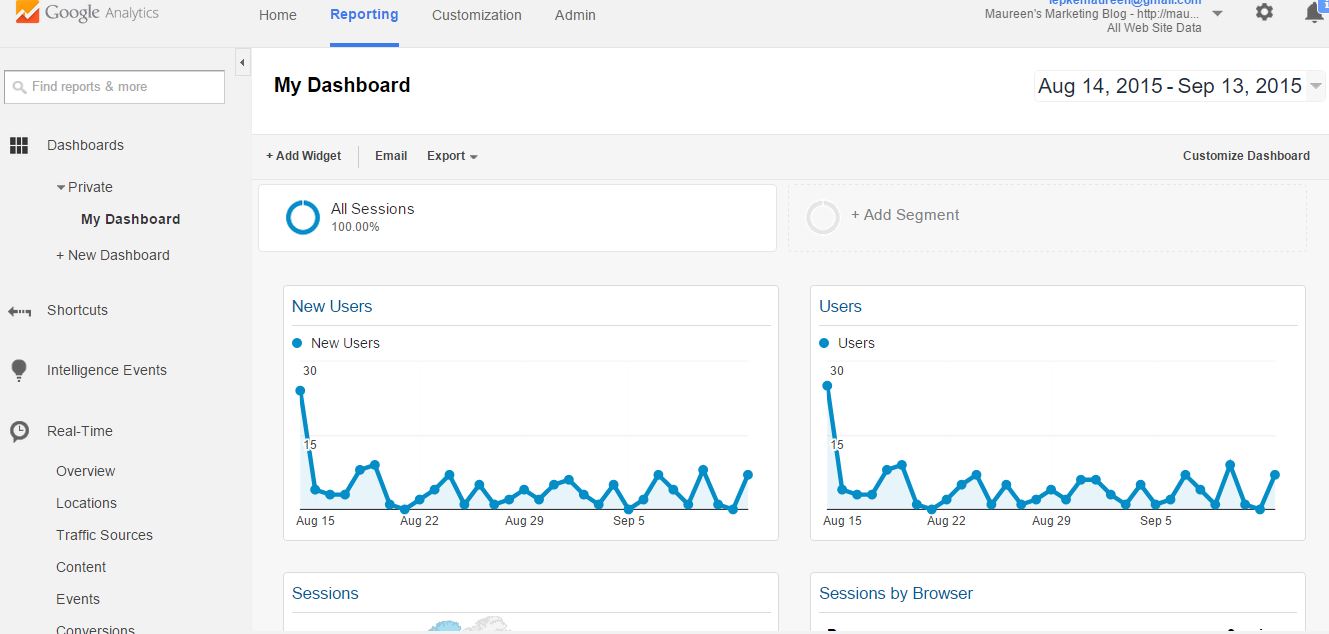
Dashboards can help make it easier to see the performance of certain aspects of your campaign. Click on Reporting at the top and then New Dashboard. Select Starter Dashboard and you can name it whatever you want. You can then set a date range to see data from an amount of time.

The dashboard will organize all important data that Google Analytics collects about your website for a nice overview  about your website.

This is a screenshot of the Dashboard for my marketing blog.


Thursday, September 24, 2015

How to Get More Traffic to Test Analytics

Different Ways to Increase Traffic to Your Blog


Social Media


You can share your blog link on social media accounts such as Facebook, Twitter, and LinkedIn. Visuals help to increase clicks so include a picture of your blog in your post. When you post to social media explain that you are trying to increase traffic and generate data. This will help increase the chances of people clicking on your link.

Promote Your Post on Social Media


You can promote your post on social media, but you have to pay Facebook. Once you do, it will become sponsored and will reach more than just your connections.

Create an Ad on Facebook


An ad campaign can also be a way to increase traffic to your blog. The first step is to go to http://www.facebook.com/ads/. 

Choose the "Clicks to Website" option, and then paste the link to your blog. The next step is to choose an image to use for your blog. Once you have the image, create a headline with a call-to-action for the ad.

You can then select your audience- who you want to click on the ad. This can be done by choosing geographic locations and selecting interests. The interests are keywords about who you are targeting your ad to. So for instance if you use your blog as the ad you are promoting, you will type in what your blog is about.

A screenshot of this step is featured below.

How to Get More Traffic to Test Analytics


Then, choose how long you want your ad campaign to run and how much you want to spend.
Finally, make the payment and place the order.

To see if there is any traffic from the ad, you can check this website: https://www.facebook.com/ads/manage.

Monday, September 14, 2015

A Simple Way to Start Using Google Analytics

It's Easy to Get Started Using Google Analytics

An easy way to begin to see how Google Analytics works and all the tools that are offered is to create a Google account. This can be done at http://mail.google.com or by using an already created Google account.

First Step: Creating a Blog


You can start a blog by going to http://www.blogger.com.
Click where it says New Blog. You can name it whatever you want, and you can choose the address you want it to have. Once you have created the address, make a note because you will need the link when you create the Google Analytics account.

Choose a template that you would like for your blog. This is the visual element that will appear on all your posts. Once you have completed these steps, click the button that says Create blog!

new blog


Now you can begin blogging about whatever topic you like. Once your blog is published you'll want to find ways to get your content seen. Try posting your blog link to Facebook or email the link to your contacts. 

Second Step: Creating a Google Analytics Account


Create the Google Analytics account by going to http://www.google.com/analytics/ 
There will be a button in the top right hand corner that says "Access Google Analytics" if you are already signed into your Google account. If you aren't signed in, then there will be a button that says "Sign in" and you can use your Google account information.

Once your are signed in, you will be directed to a page that allows you to sign up for the Google Analytics account. Then you will be prompted to do 5 things: 

  1. Type in an account name. This could be your name, the name of your organization, or a title. 
  2. Set up a property. This is a place where your new site or blog is added for Google Analytics to track. Paste the address of your blog in this spot. 
  3. Then get your Tracking ID. This is a code that Google gives you so that you can paste it in your blog to connect Google Analytics with your blog. 
  4. Accept the Agreement
  5. Google Analytics will open a page with the name you gave your site or blog, and you can find the Tracking ID and copy it.

Third Step: Connecting the Blog Post with Google Analytics


Go back to your blog, and find the blog settings. Click "Settings" and then click "Other" Then find where it says "Google Analytics". This is where you will paste the Tracking ID from the Google Analytics page. 

It may take up to 24 hours to connect the two, but once they are connected, you can begin to track the analytics by clicking on the globe icon. This will show you web analytics that will give you an insight on your blog's performance. This means it will tell you how many visits you have and what the behavior is like on your site. You can also set a date range to show data daily, weekly, or monthly. This allows you to look back into past data and analyze trends you may see. 

Google Analytics

Finally...


Once it's all set up, try to get more traffic to your blog by posting the link on Facebook and regularly blogging about relevant content.

Tuesday, September 8, 2015

Analytics Can Help Your Career and Your Business

The Importance of Analytics

In 2013, some of the top skills companies were looking for when hiring people were social media marketing, digital and online marketing, and business intelligence.

Top 3 Skills to Have:

1. Social Media Marketing- helps marketers to understand the performance of campaigns.

2. Digital and Online Marketing- uses web analytics to see how many people are visiting or purchasing things on your website.

3. Business Intelligence- includes web analytics and uses competitive intelligence like financial trends or tools that look at competitors.

Web Analytics Tools

The Google Analytics Tool is a free resource for companies to use. Gaining the Google Analytics Certification can make your resume stand out and show your credibility to future employers.

google-analytics
Image Source: Google Images
Adobe Analytics - Omiture is an expensive program, but having this knowledge can lead to a higher salary. Not a lot of people have this skill.

Open Source Analytics helps people control their own data.

Social Analytics is included in different social media platforms such as Facebook and Youtube where users can track how many people commented and visited their site.